 SceneIT BLOG
HOW TO: List your Resume
By: Paul Brinkmann
Step 1: Navigate to your Profile page
Prefer a link? Right here: https://sceneit.us/dm/jobs/profile
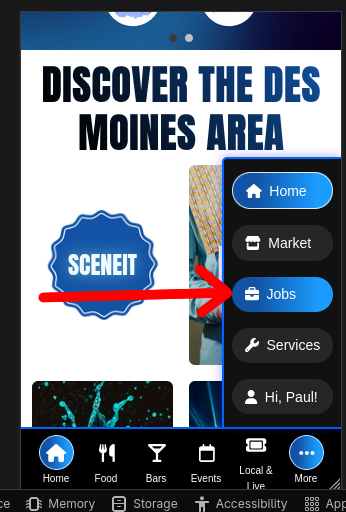
Otherwise, press the Jobs button:

On mobile:
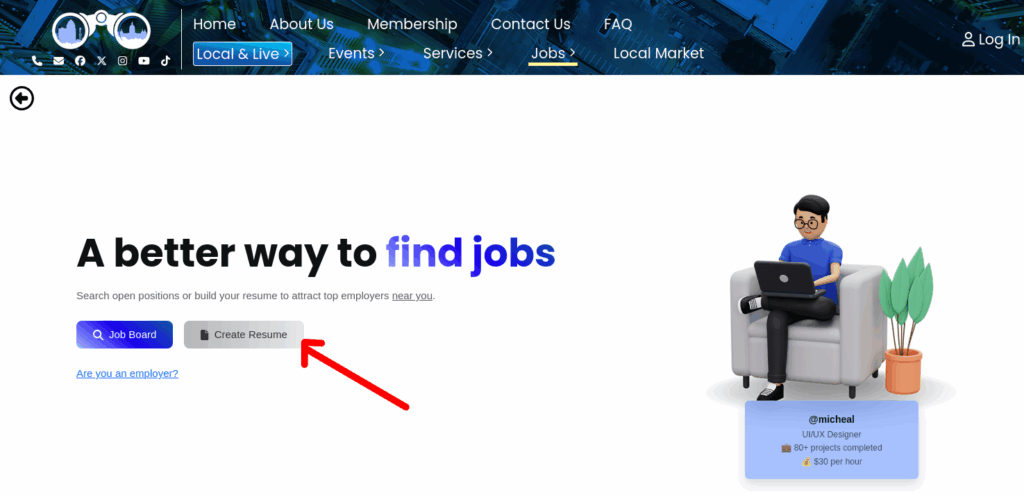
Then, press Create Resume!
Step 2: Create your Profile
That will bring you to this page!

NOTE: If you are not logged in, you will be redirected to the login page. Logging in or creating an account will bring you back where you came from!
NOTE: This page will look different if you’ve already created a profile!! If you’ve already created a profile, skip to Step 3!
That will bring you to this form!
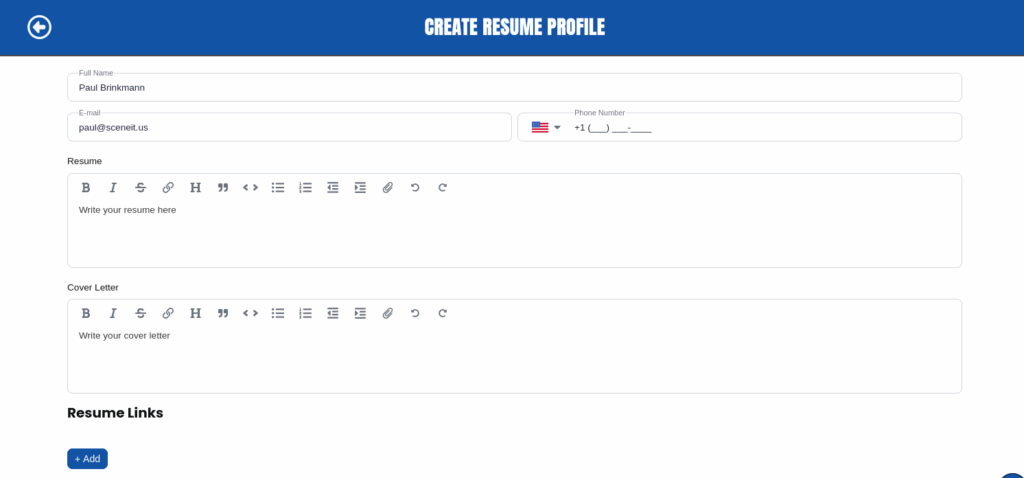
This is quite a long form – take the time to fill it out! Few notes:
- Your Resume and Cover Letter are text-based entries that allow you to input your primary resume and a generic cover letter for employers to view and read! We recommend inputting your full resume into this section
- Resume Links is a section that allows you to add links to different profiles and things outside of SceneIT! LinkedIn, a portfolio, etc – anything that will help an employer understand you better
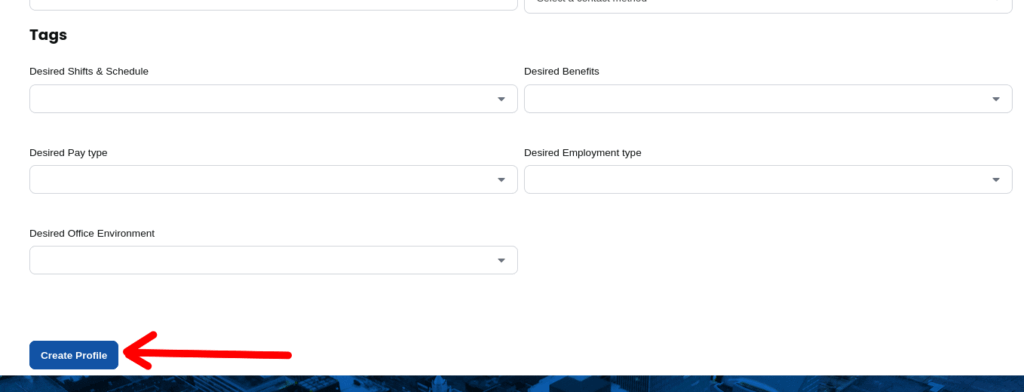
- The Your Filters section is information provided to prospective employers to allow them to filter candidates by the information you provide – make sure that’s accurate!!
Once you’re done, press Create Profile at the bottom of the page!
Step 3: Edit your Job Qualifications
Once you have created your profile, your profile page will look like this!
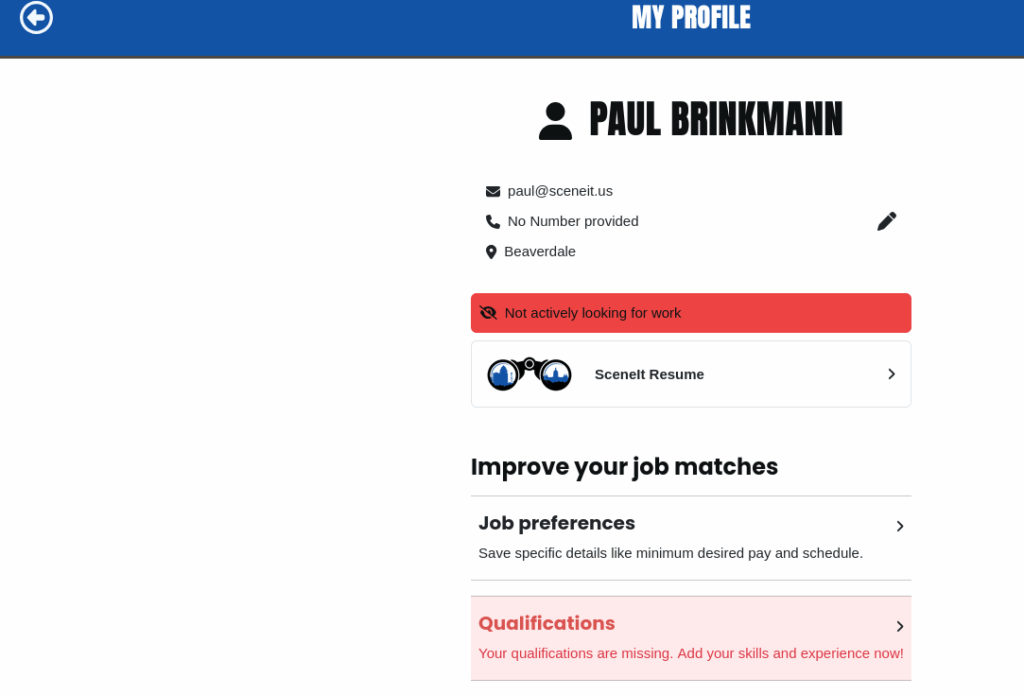
Here, you can edit any section of your profile. This information does not change the information on your account, it’s only for employers. You can edit each section by clicking on it, and you will be brought to a partial form!
Clicking on “Not actively looking for work” will automatically update your profile to be “Actively looking for work“!
Step 4: Add your Qualifications
The primary section you should look at though is Qualifications – adding these will set your profile apart from other profiles!! To do this, press the Qualifications tab:
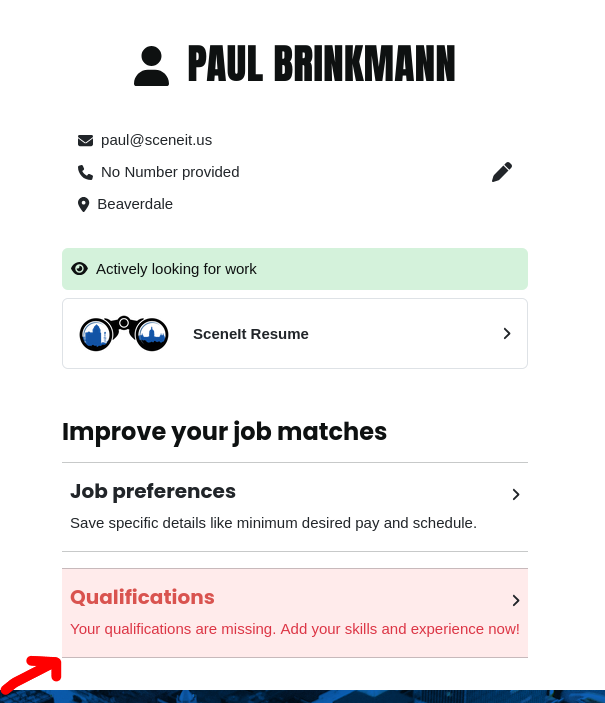
This will bring you to this page:
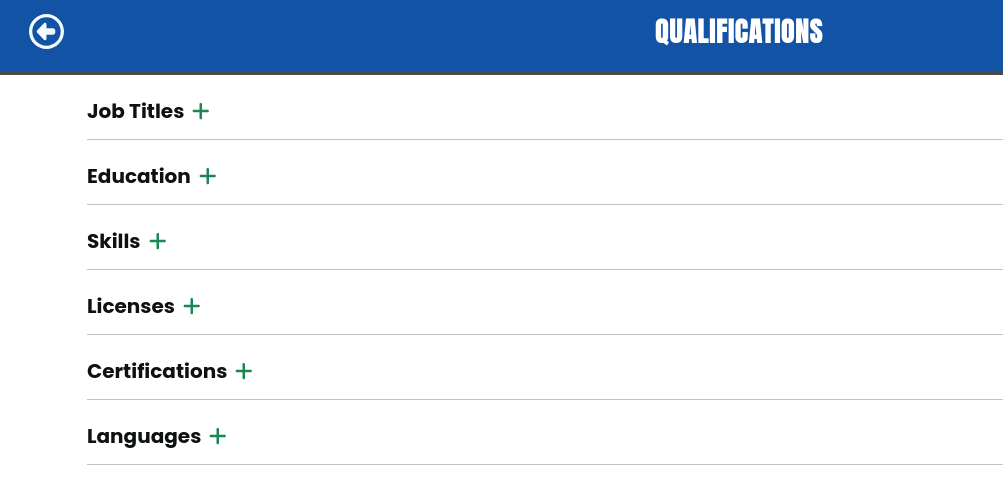
Here, you can see a wide variety of categories for qualifications you can add! Press the + green plus next to one of them to get started!
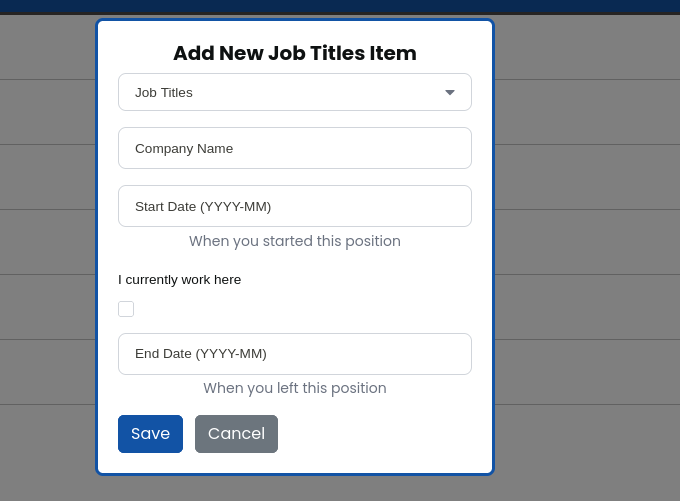
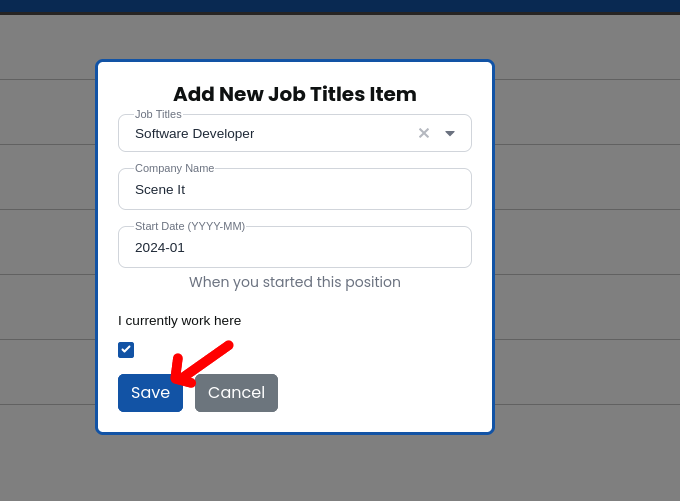
Each form will look a little different – I pressed on Job titles! This will ask for relevant information!
NOTE: The primary title field (in this case, job titles) will autofill based on a generic list stored in our database. This is how we allow for employers to filter by this. If yours isn’t in there, don’t worry! It will automatically be created for admin approval once you create the item
Once you’re done, press Save
And boom! It will be added like so:
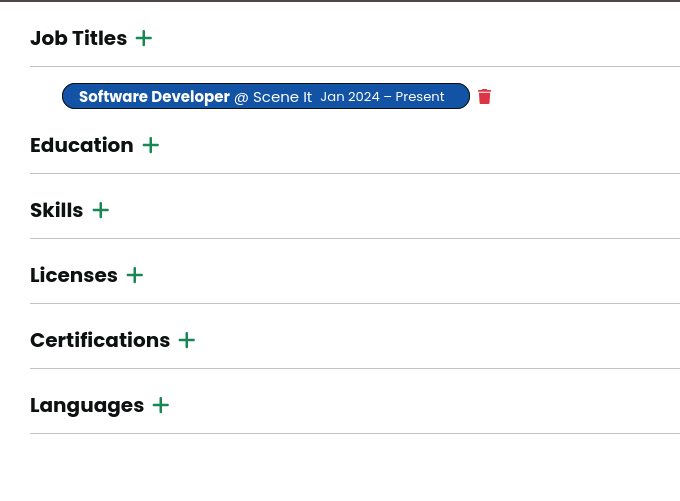
You can edit an item at any time by clicking on it, or click the red garbage can to remove it!
Step 5: Use it!
Awesome! Your Resume is now listed in the Scene It Resume Book. For security reasons, this is only accessible by employers. However, never fear! You still benefit from your newly created profile as well
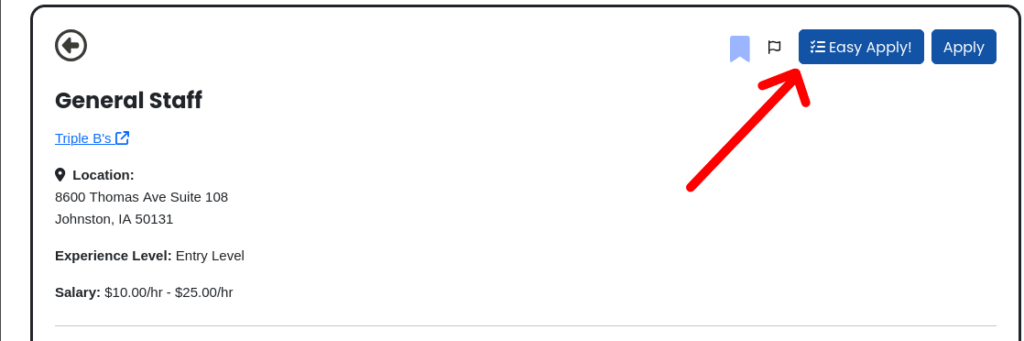
Every time you go to apply to a job, there will now be an “Easily Apply” button! Pressing this button will apply to the job in one click with information supplied by your profile
Congratulations!! You’ve just made your job search easier. Thank you for using Scene It to help you find work!